 Peebee Software Solutions
If you've ever needed to merge, split, compress, or convert a PDF, you've probably ended up on some sketchy website uploading your documents to who-knows-where. Stirling-PDF fixes that — it's a fully self-hosted PDF toolkit you run on your own hardware, and it's absolutely packed with features.
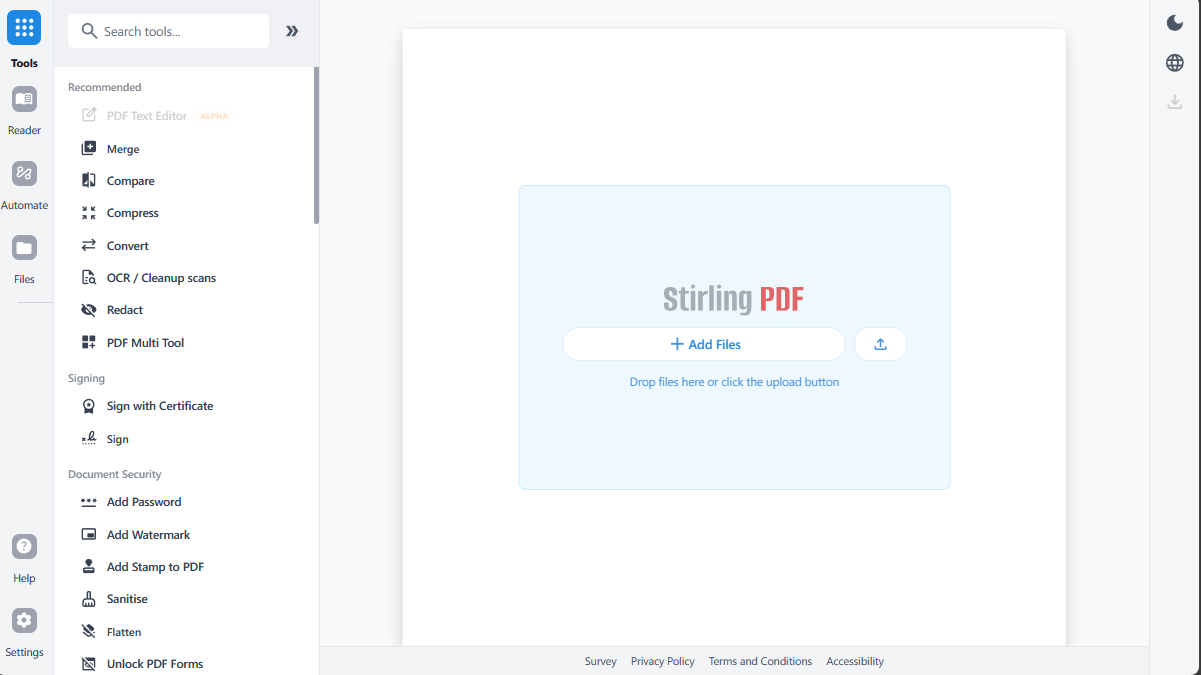
What Is Stirling-PDF?
Stirling-PDF is an open-source, self-hosted web application that gives you 50+ PDF tools all in one place. Merge, split, rotate, compress, convert, add watermarks, redact text, OCR scanned documents — you name it. It runs entirely on your own server, so your documents never leave your network.
Key features:
- 50+ PDF manipulation tools in a clean web UI
- Runs 100% locally — your files never leave your server
- OCR support for scanned documents
- REST API for automation and integration
- Available in 40+ languages
- Dark mode (because of course)
Installing with Docker Compose
The easiest way to get Stirling-PDF running is with Docker Compose. Create a directory for it and add a docker-compose.yml:
mkdir -p ~/stirling-pdf && cd ~/stirling-pdfCreate your docker-compose.yml:
services:
  stirling-pdf:
    image: stirlingtools/stirling-pdf:latest
    container_name: stirling-pdf
    ports:
      - '8080:8080'
    volumes:
      - ./stirling-data/tessdata:/usr/share/tessdata
      - ./stirling-data/configs:/configs
      - ./stirling-data/logs:/logs
      - ./stirling-data/pipeline:/pipeline
    environment:
      - SECURITY_ENABLELOGIN=false
      - LANGS=en_GB
    restart: unless-stopped
Fire it up:
docker compose up -dThat's it. Open http://your-server-ip:8080 in your browser and you're in.
What the Volumes Do
/configs— Settings and database storage/usr/share/tessdata— OCR language files (for text recognition on scanned PDFs)/logs— Application logs/pipeline— Automation pipeline configs
Which Image to Use?
Stirling-PDF comes in three flavours:
- latest — The standard image. Has everything most people need. Use this one.
- latest-fat — Includes extra conversion tools and formats. Bigger image, more capabilities.
- latest-ultra-lite — Stripped down for low-powered hardware (Raspberry Pi, old NAS boxes, etc).
SECURITY_ENABLELOGIN=true and Stirling-PDF will prompt you to create an admin account on first launch. Handy if you're exposing it beyond your local network.
Putting It Behind a Reverse Proxy
If you're already running nginx (like this site does), you can proxy Stirling-PDF behind a subdomain or path. Here's a basic nginx location block:
location /pdf/ {
    proxy_pass http://127.0.0.1:8080/;
    proxy_set_header Host $host;
    proxy_set_header X-Real-IP $remote_addr;
    proxy_set_header X-Forwarded-For $proxy_add_x_forwarded_for;
    proxy_set_header X-Forwarded-Proto $scheme;
    client_max_body_size 100M;
}client_max_body_size is important — without it nginx will reject any PDF upload over 1MB.
Worth It?
Absolutely. Once you've got Stirling-PDF running you'll never go back to those dodgy online PDF converters. It's fast, it's private, and it handles pretty much anything you throw at it. Perfect for a homelab setup.
Links: